
1. Pre-Installation Preparation
- Model & Compatibility Confirmation
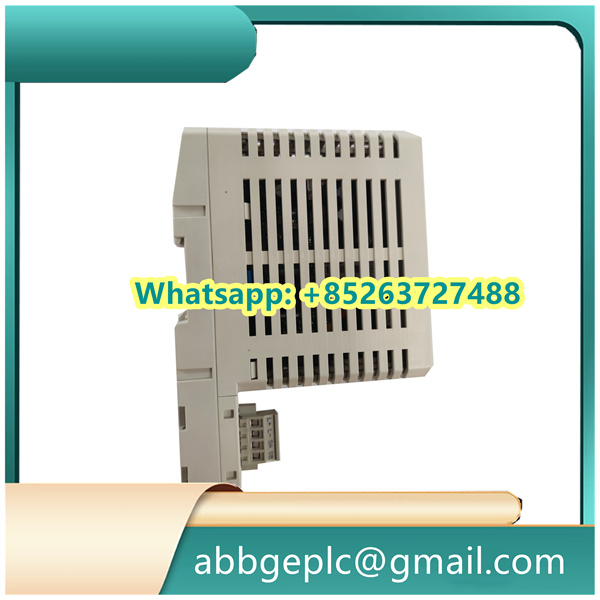
- Verify that the GOP2 ABB model matches the ABB control system requirements (e.g., compatible with AC 800M DCS, ABB PLCs, or other industrial controllers via standard communication protocols like Modbus or Profinet).
- Check key technical specifications against the GOP2 ABB product manual: rated power supply (typically 24 VDC), screen size (common 4.3–7 inches for compact versions), mounting type (panel-mount or desktop), and operating temperature range (-10°C to +55°C for industrial use).
- Safety & Tool Preparation
- Power off the connected ABB control system and any associated power supplies to prevent electric shock or short circuits during installation.
- Wear an anti-static wristband to protect the GOP2 ABB internal electronics (e.g., touchscreen module, communication chips) from electrostatic discharge (ESD).
- Prepare required tools: Phillips screwdriver (for panel mounting), wire stripper (for power/communication cable preparation), multimeter (for voltage checks), and cable ties (for wiring organization).
- Installation Environment Check
- Ensure the installation location (e.g., control room panel, machine-mounted console) meets GOP2 ABB ’s environmental specs: no direct sunlight (to avoid screen glare/damage), low dust/humidity (10–90% non-condensing), and no exposure to vibration (use anti-vibration mounts if installed near heavy machinery).
- Confirm sufficient space for wiring access (behind the panel) and user operation (front of the screen) — allow at least 10 cm of clearance around the GOP2 for ventilation and cable management.
2. Physical Installation & Wiring
- Panel Mounting (Standard Installation)
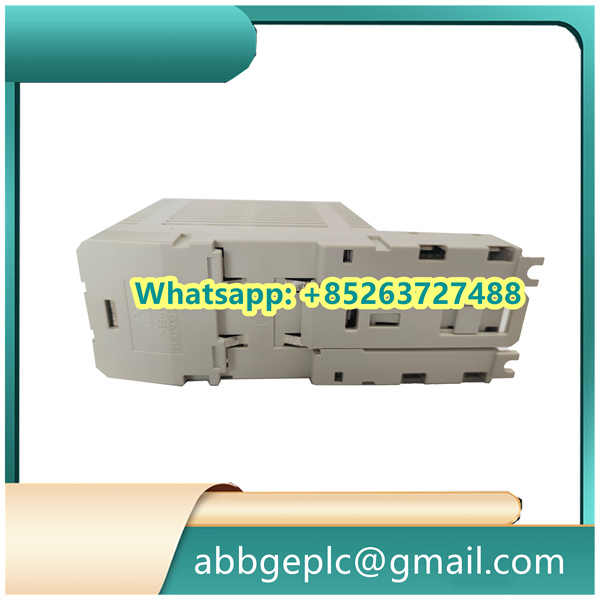
- Mark the mounting hole positions on the control panel using the GOP2’s template (provided in the product package). Drill holes matching the template dimensions (typically 4–6 mounting holes for stability).
- Insert the GOP2 into the panel cutout, ensuring the screen is aligned horizontally. Secure the GOP2 from the back of the panel using the provided mounting brackets and screws. Tighten screws with a screwdriver to a torque of 0.5–0.8 N·m — avoid over-tightening to prevent screen or casing damage.
- Power Supply Wiring
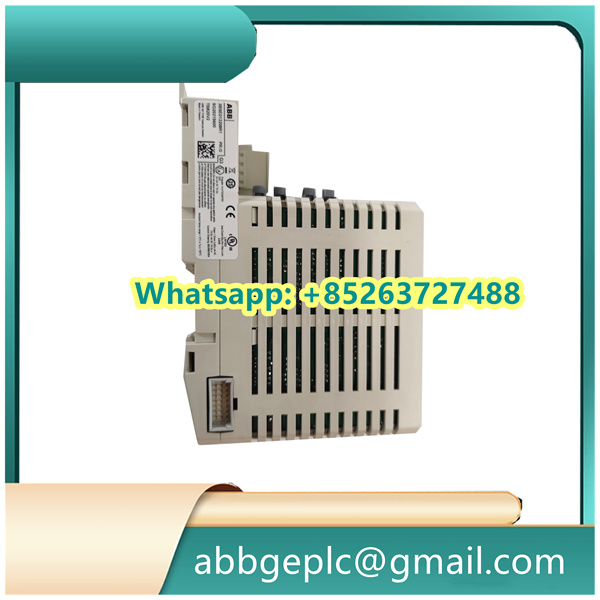
- Locate the “POWER IN” terminal block on the back of the GOP2 (labeled “+24V,” “0V,” and “PE” for protective earth).
- Strip 5–7 mm of insulation from the 24 VDC power cable (ABB-approved industrial-grade cable with 0.75–1.5 mm² conductor recommended). Connect the positive (+24V) wire to “+24V,” negative (0V) to “0V,” and ground wire (green-yellow) to “PE” for electrical safety.
- Tighten terminal screws to 0.4–0.6 N·m with a torque screwdriver. Use a multimeter to pre-test the power cable (ensure no short circuit between +24V and 0V) before final connection.
- Communication Wiring
- Select the appropriate communication cable based on the protocol (e.g., Ethernet cable for Profinet/Modbus TCP, shielded twisted-pair cable for RS485 Modbus RTU).
- For Ethernet communication: Connect one end of the Cat5e/Cat6 cable to the GOP2’s “ETH” port (RJ45 connector) and the other end to the ABB controller’s Ethernet switch. Ensure the cable is terminated with T568A/B standards (consistent with the system).
- For serial communication (e.g., RS485): Connect the “A” (positive) and “B” (negative) wires of the shielded cable to the GOP2’s “RS485-A” and “RS485-B” terminals, respectively. Ground the cable shield at one end (controller side) to reduce electromagnetic interference (EMI).
3. Initial Configuration (Via ABB Software)
- Software Setup
- Install ABB’s Panel Builder software (compatible with GOP2) on the engineering workstation. Launch the software and create a new project, selecting “GOP2” as the target device.
- Import the control system’s tag database (e.g., from ABB Control Builder M for AC 800M) to map process variables (e.g., temperature, pressure, valve status) to the GOP2 screen.
- Screen Design & Parameter Setting
- Design user screens using Panel Builder:
- Monitoring Screens: Add widgets (gauges, trend charts, digital displays) to show real-time data from the ABB controller (e.g., a gauge for “Tank Temperature,” a digital readout for “Pump Pressure”).
- Control Screens: Include touch buttons (e.g., “Start Pump,” “Stop Valve”) linked to controller commands, and set access permissions (e.g., password protection for critical operations like “Emergency Stop”).
- Alarm Screens: Configure alarm triggers (e.g., high temperature > 90°C) and display formats (pop-up alerts, color-coded indicators) to notify users of abnormal conditions.
- Set communication parameters: Define the GOP2’s IP address (for Ethernet) or baud rate/parity (for RS485) to match the ABB controller’s settings. Test the communication link via Panel Builder’s “Connection Test” tool — a “Success” message confirms proper connectivity.
- Project Download to GOP2
- Connect the engineering workstation to the GOP2 via Ethernet (direct cable or network switch). In Panel Builder, select “Download Project” and follow the prompts to transfer the configured screens and parameters to the GOP2.
- Wait for the download to complete (indicated by a progress bar in the software). The GOP2 will automatically restart to apply the new configuration — a “Configuration Applied” message on the screen confirms success.
There are no reviews yet.