
1. Pre-Operation Preparation
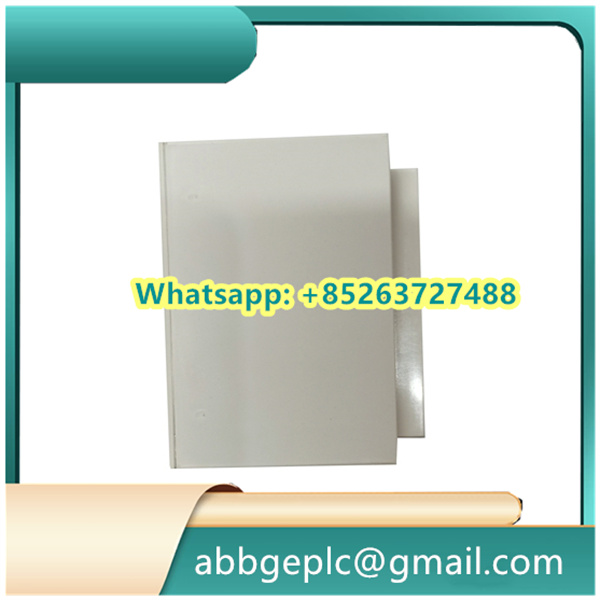
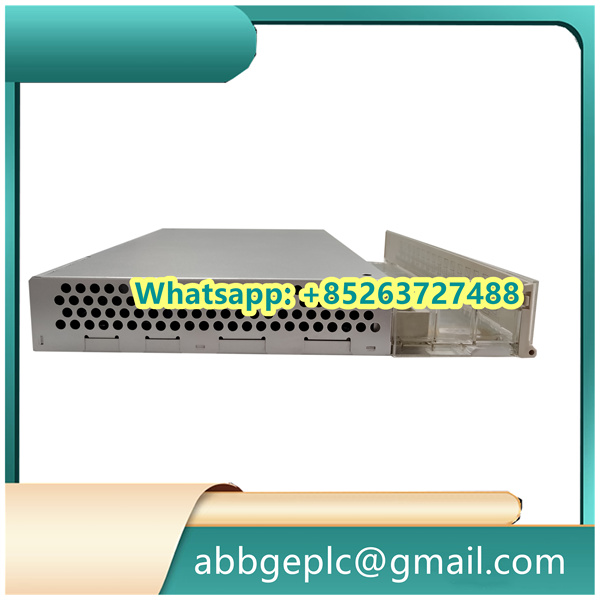
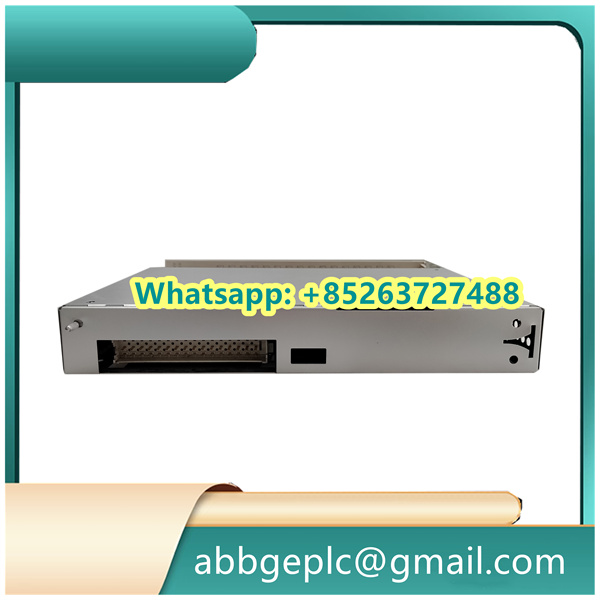
- Confirm the NINT-72C module is compatible with the target ABB control system (check model matching via the system’s hardware compatibility list).
- Inspect the module for physical damage (e.g., bent pins, cracked housing) and ensure all required accessories (e.g., mounting screws, network cables) are available.
- Power off the host control cabinet to avoid electrical damage during installation.
2. Physical Installation
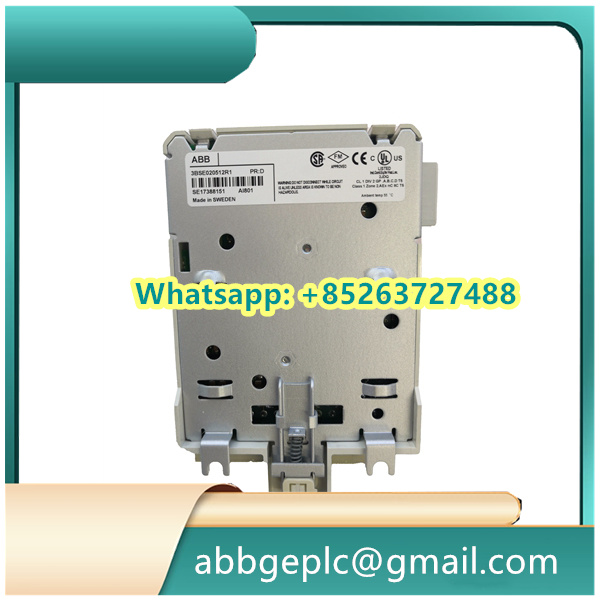
- Align the NINT-72C with the designated slot in the ABB control chassis (ensure the module’s guide rails match the chassis slots).
- Push the module firmly into the slot until it clicks into place (confirm secure engagement with the chassis backplane connector).
- Fasten the module’s front-panel screws to the chassis using a torque screwdriver (follow ABB’s recommended torque: typically 0.8–1.2 N·m) to prevent vibration-induced disconnection.
3. Wiring Connection
- Power Wiring: Ensure the control chassis provides the correct input voltage (refer to the NINT-72C datasheet; common ratings: 24 V DC ±10%)—no direct power wiring is needed for the module if it draws power from the chassis backplane.
- Network Wiring: Connect the external network cable (e.g., Cat5e/Cat6 for Ethernet) to the NINT-72C’s front-panel RJ45 port. Verify the cable is properly crimped and compliant with the network’s speed standard (e.g., 1000 Base-T for Gigabit Ethernet).
- Grounding: Connect the module’s grounding terminal (if equipped) to the control cabinet’s protective ground (PE) to reduce electromagnetic interference (EMI).
4. Power-On & Initial Check
- Power on the control chassis and observe the NINT-72C’s front-panel LED indicators:
- Power LED (PWR): Should illuminate solid green (indicates normal power supply; a red or blinking LED signals a power fault).
- Network LED (LINK): Should illuminate solid green (indicates a valid network link; a blinking green LED means data is being transmitted/received).
- If any LED shows an abnormal status (e.g., PWR red, LINK off), power off the chassis, recheck wiring and module installation, then power on again.
5. Parameter Configuration
- Launch the ABB configuration software (e.g., Control Builder M, ABB Automation Builder) on a PC connected to the same network as the NINT-72C.
- In the software, scan the control system to detect the NINT-72C module (it will appear under the “Network Interfaces” category in the hardware tree).
- Double-click the NINT-72C to open the configuration menu, then set key parameters:
- IP Address: Assign a static IP (or enable DHCP if supported) that matches the control system’s network segment.
- Communication Protocol: Select the target protocol (e.g., TCP/IP, Profinet) based on system requirements.
- Timeout Settings: Configure network timeout thresholds (typically 1–5 seconds) to avoid false disconnection alarms.
- Save the configuration and download it to the NINT-72C. The module will automatically restart to apply the settings.
6. Function Testing
- Network Connectivity Test: Use the configuration software to ping the NINT-72C’s IP address—successful pings confirm network communication.
- Data Transmission Test: Send a test signal from the ABB controller to an external device via the NINT-72C (e.g., a sensor or HMI). Verify the external device receives the signal and the NINT-72C’s “DATA” LED blinks to indicate active transmission.
- Fault Simulation: Temporarily disconnect the network cable to confirm the module triggers a fault alarm (check via the software’s alarm log) and the LINK LED turns off—this validates the fault-detection function.
There are no reviews yet.